BlueDriver Bluetooth OBD2 Scanner Review: Worth It? (November 2026)
BlueDriver suits DIY owners who want enhanced diagnostics and VIN-matched repair reports in a phone app without a subscription. Buy it after confirming coverage for your vehicle; choose another tool if Windows software or active tests are essential.
On this page (12 sections)
- What does the BlueDriver scanner offer?
- Who should buy BlueDriver, and who should skip it?
- How do you check BlueDriver compatibility before buying?
- What can BlueDriver's reports and live data tell you?
- How do you set up BlueDriver for the first scan?
- How does BlueDriver compare with OBDLink MX+?
- When do Ediag Elite and OBDLink LX make more sense?
- Which scanner fits your main task?
- Is BlueDriver a bidirectional scan tool?
- What mistakes should you avoid when scanning?
- How should you care for the adapter between scans?
- Should you choose BlueDriver?
BlueDriver is a good choice for DIY owners who want code explanations and repair guidance on their phone without a subscription. Its strongest use is helping you understand a warning light, save useful information and decide what to inspect or discuss with a repair shop.
Buy it for the work you expect to do on your actual vehicle. A scanner that reads engine codes isn't automatically able to reach the brake, airbag or transmission module you need.
What does the BlueDriver scanner offer?
BlueDriver combines enhanced diagnostics with VIN-matched repair reports in one app. It connects through the vehicle's OBDII port and uses an iOS or Android phone or tablet as its screen.
BlueDriver Bluetooth OBD2 Scanner: Best for first-time DIY owners

- Enhanced diagnostics on supported vehicles
- Technician-verified repair reports matched to VIN
- Live data and freeze frames
- iOS and Android app
- No subscription fees
Choose BlueDriver for code explanations and repair guidance in one phone app. It suits DIY owners who want to understand a warning before deciding what to inspect or ask a shop.
Pros
- Reads and clears enhanced codes on supported vehicles
- Repair reports are matched to VIN
- Includes live data, freeze frames and smog readiness
- No subscription fees or add-ons
Cons
- Requires a compatible phone or tablet
- Enhanced features depend on vehicle compatibility
- No confirmed active-test capability
On supported vehicles, it reads and clears Check Engine, ABS, SRS, airbag, TPMS and transmission codes. Its other tools include live data, freeze frames, smog readiness and Mode 6 results.
The reports provide code definitions, possible causes and technician-verified fixes matched to your VIN. Those details help you move from an unfamiliar code to a sensible next step, such as inspecting a connection or asking a shop to investigate a specific symptom.
BlueDriver promises full feature access without subscription fees, add-ons or a required account, plus free app updates. That suits occasional users who want to put the adapter away between problems without keeping track of a software renewal.
Who should buy BlueDriver, and who should skip it?
Choose BlueDriver if you want help understanding faults before making repair decisions. It fits first-time DIY owners, family-car owners and drivers who want useful information before a shop visit.
You don't need to carry out every repair yourself to benefit. Saving the original codes and noting when a fault appears can make your conversation with a technician more focused.
It also suits a used-car shopper who wants another source of information during an inspection. A scan can reveal stored faults or incomplete readiness checks, but a clean scan doesn't guarantee the condition of the brakes, tires, body or suspension.
Skip it if your main requirement is Windows software, a particular third-party app or commands that operate vehicle components. Choose those tools by their confirmed support for the task, rather than assuming every Bluetooth adapter offers the same functions.
If you only want to read an occasional engine code, compare the added guidance with your likely use. Our explanation of what a bidirectional scan tool does helps separate code reading from component commands.
How do you check BlueDriver compatibility before buying?
Check the exact vehicle and required system, not just the model year or brand. Standard engine-code coverage and enhanced module access are separate questions.
BlueDriver covers North American gasoline vehicles from 1996 onward, plus select light-duty trucks and diesels. It also supports standard OBD2 engine and emissions codes on hybrids; most EV diagnostic systems are proprietary.
Its named enhanced coverage includes GM, Ford, Stellantis, Toyota, Honda, Nissan, Mazda, Subaru, Hyundai, Mercedes-Benz, BMW and VW. BlueDriver also highlights enhanced communication on select 2024-and-newer Nissan and Mazda models.
Use this short checklist before ordering:
- Identify the vehicle's make, model, year and engine.
- Name the system you need, such as ABS or transmission.
- Check whether you need code access, live data, a reset or a component command.
- Confirm that function for each vehicle you plan to scan.
- Check that your phone can run the app.
For example, an ABS warning calls for confirmed ABS access, not simply general OBD2 compatibility. A TPMS fault-code function also doesn't mean a tool can program replacement tire sensors.
Read whether OBD2 scanners work on all cars for more on these coverage differences. Our best Bluetooth OBD2 scanners guide helps if your vehicle or phone points you toward another adapter.
What can BlueDriver's reports and live data tell you?
Use the reports to plan an inspection, rather than choose a replacement part immediately. A code describes a detected problem, which may have several possible causes.
A sensor-related code, for example, can involve wiring, a connection or conditions elsewhere in the system. A repair report narrows your starting point, but the same code can have different causes on two vehicles.
Freeze-frame information captures operating conditions associated with a fault. Record it before clearing codes so you retain context such as whether the engine was cold or under load.
Live data helps you follow changing readings while investigating a specific symptom. Start with a small group of relevant values; a screen full of unrelated numbers makes patterns harder to spot.
Mode 6 provides results from onboard diagnostic checks. Use vehicle-specific guidance when interpreting those results, since an unfamiliar value without its meaning or limit can lead you in the wrong direction.
Smog readiness shows whether the vehicle's emissions monitors have completed their checks. It isn't a promise that the car will pass an inspection, which may include other requirements.
How do you set up BlueDriver for the first scan?
Start with the vehicle parked and the app ready, then follow the app's connection instructions. The first scan should preserve information before you change anything.
- Install the BlueDriver app on your compatible device.
- Find the OBDII port using the vehicle manual if needed.
- With the ignition off, insert the adapter without forcing it.
- Turn the ignition to the position requested by the app.
- Enable Bluetooth and follow the app's pairing steps.
- Confirm the vehicle details before scanning.
- Record the codes, status and available freeze-frame information.
Some checks need the engine running, while others use the ignition alone. Follow the instructions for the function you select, and never run the engine in an enclosed garage.
If the connection fails, check the ignition position, adapter seating and phone permissions before repeatedly reconnecting. If the adapter has no power, consult the vehicle manual for the diagnostic-port fuse rather than probing the connector at random.
For the connection and code-reading process in more detail, follow our guide on how to use an OBD2 scanner.
How does BlueDriver compare with OBDLink MX+?
Choose BlueDriver for integrated repair guidance, or OBDLink MX+ when app choice and Windows support matter more. Start with the software you intend to use, then select the adapter that supports it.
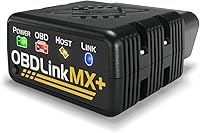
MX+ works with iOS, Android and Windows. It is recommended for apps including FORScan, Torque, BimmerCode, DashCommand, AlfaOBD and Carista, though each app's functions depend on the vehicle.
The included OBDLink app can graph, log and export real-time engine data. MX+ also includes over-voltage and battery drain protection, plus firmware updates.
That flexibility suits someone who already knows which app and vehicle functions they want. It adds more decisions for a beginner, including checking separate app requirements and any fees.
BlueDriver is the clearer fit if you want to stay within one app and use repair reports to understand faults. Skip MX+ if you have no use for its wider software choices and prefer that simpler workflow.
Our BlueDriver vs OBDLink MX+ comparison weighs those choices directly. The OBDLink MX+ review explains its app-focused role in more detail.
When do Ediag Elite and OBDLink LX make more sense?
Choose Ediag Elite for supported repair functions, or OBDLink LX for compatible Android and Windows data work. They solve different needs, so neither is a direct substitute for every BlueDriver buyer.
Ediag Elite for maintenance and component commands
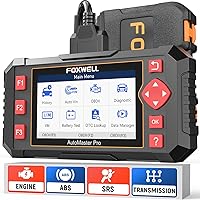
Ediag Elite offers full-system diagnostics, active tests and more than 15 reset services on supported vehicles. Its named functions include oil reset, ABS bleeding, steering-angle reset and battery-management reset.
That makes it worth considering for a DIY owner who performs maintenance requiring a specific service procedure. Active tests can command supported components, including radiator fans, throttles and windows.
KINGBOLEN promises lifetime updates without subscription fees and includes CAN FD and FCA AutoAuth support. Protected FCA functions require your own FCA account, so check access requirements separately.
Skip it if you only need warning-light explanations or aren't prepared to follow vehicle-specific procedures. Confirm phone requirements before buying, since its stated support includes iOS and Android while the operating-system details also name Android 5.0.
OBDLink LX for compatible data logging
OBDLink LX suits drivers who want engine-data graphs, logs and custom dashboards on Android, or OBDwiz software on Windows. It also supports compatible third-party apps and MotoScan-compatible motorcycles.
Its vehicle coverage includes US 1996-and-newer cars and light trucks, excluding hybrids and electric vehicles. It doesn't support Apple iOS, so an iPhone user should remove it from the shortlist immediately.
Skip LX if your main goal is enhanced access to a particular safety module without confirmed app and vehicle support. Choose it around a known software workflow rather than expecting BlueDriver's report-based experience.
Which scanner fits your main task?
Match the tool to the next job, then verify coverage before buying. A feature you won't use adds little value.
| Your main task | Best starting point | What to confirm |
|---|---|---|
| Understand warning codes with repair guidance | BlueDriver | Exact module access |
| Use a chosen diagnostic app or Windows PC | OBDLink MX+ | App support, functions and fees |
| Perform a maintenance reset or component command | Ediag Elite | Exact procedure and vehicle support |
| Log engine data on Android or Windows | OBDLink LX | Vehicle eligibility and software fit |
If your search extends beyond engine and emissions codes, our full-system scanner guide provides a related starting point. For the specific safety modules discussed here, compare scanners with ABS and SRS coverage.
For a wider shortlist across tool types, see our best OBD2 scanners.
Is BlueDriver a bidirectional scan tool?
Don't buy BlueDriver for active tests, because component-command capability isn't established among its confirmed functions. Reading a module's codes is different from telling that module to operate a component.
Choose a tool with explicit support for the command you need. Even a bidirectional scanner may support one actuator procedure on a vehicle while lacking another.
Ediag Elite offers active tests, but its exact commands still need a vehicle-specific check. Our article on whether BlueDriver is bidirectional explains this buying distinction.
What mistakes should you avoid when scanning?
Save the evidence before clearing codes, and investigate the cause before replacing parts. Clearing a warning doesn't repair the fault or prove the vehicle is safe to drive.
Avoid these common mistakes:
- Replacing a part solely because its name appears in a code.
- Clearing codes before saving freeze frames and fault details.
- Assuming a dark warning light means there are no stored faults.
- Expecting readiness monitors to remain complete after clearing codes.
- Assuming support for one family vehicle covers every other vehicle.
- Watching live readings on your phone while driving.
If you record data during a drive, set everything up while parked and review it afterward. Follow the vehicle manual for warning lights, and get qualified help for brake, airbag or serious drivability faults.
Repeatedly clearing a returning code hides the pattern you need to investigate. Note when it returns, what the vehicle was doing and whether the symptom changed.
How should you care for the adapter between scans?
Keep the connector clean, dry and free from strain. Remove the adapter by its housing, and store it where the pins won't collect dirt or suffer damage.
Check that it doesn't interfere with your feet, pedals or trim. Avoid forcing it into a tight port or using it as a handle while getting into the vehicle.
BlueDriver draws power from the vehicle, so don't assume an adapter should remain connected indefinitely. Follow its instructions and read our guide to leaving an OBD2 scanner plugged in before choosing that habit.
Install app updates before a planned scan or trip, and check that your phone has enough charge. Keep saved fault details with the vehicle's service records so a later scan has useful context.
Should you choose BlueDriver?
Buy BlueDriver after confirming the systems you need, especially if your goal is understanding faults and making better repair decisions. Its report-based approach suits owners who want guidance without building a workflow around several apps.
Choose MX+ for a specific supported app or Windows use, Ediag Elite for confirmed service procedures, or LX for compatible Android and Windows logging. For the closest phone-app choice, use our BlueDriver vs OBDLink MX+ comparison before ordering.
Frequently asked questions
What does BlueDriver do?
BlueDriver reads and clears engine trouble codes and supported enhanced codes, while its app adds live data, freeze frames, smog readiness and Mode 6 results. VIN-matched repair reports explain codes and possible fixes, but you still need to confirm the cause before replacing parts.
Does BlueDriver require a subscription?
BlueDriver promises full feature access with no subscription fees, add-ons or required account, and includes free app updates. That makes ongoing software costs straightforward, but it doesn't expand vehicle coverage: check your exact make, model, year and required systems before deciding to buy.
What phones work with BlueDriver?
BlueDriver connects by Bluetooth to its app on compatible iOS and Android phones or tablets. Before buying, confirm that your device can install and run the app, then check vehicle coverage separately because phone compatibility doesn't guarantee access to every control module in your car.
Does BlueDriver work with every car?
BlueDriver covers 1996-and-newer North American gasoline vehicles and select light-duty trucks and diesels, with enhanced functions varying by vehicle. Hybrids support standard engine and emissions code scanning, while most EV diagnostics are proprietary, so check the exact vehicle and system rather than relying on brand coverage alone.