BlueDriver vs OBDLink MX+: Which Is Better? (November 2026)
In BlueDriver vs OBDLink MX+, choose BlueDriver for VIN-matched repair guidance or OBDLink MX+ for Windows access and compatible third-party apps. Confirm coverage for your exact vehicle and intended task.
On this page (12 sections)
- BlueDriver vs OBDLink MX+: what is the main difference?
- Which scanner supports your phone or computer?
- Which one gives you more useful repair information?
- What vehicle systems can each scanner access?
- Who should buy BlueDriver, and who should skip it?
- Who should buy OBDLink MX+, and who should skip it?
- Do either BlueDriver or OBDLink MX+ need a subscription?
- How should you set up your first scan?
- What common mistakes make scan results less useful?
- How should you care for and store the adapter?
- Is the OBDLink LX an alternative to MX+?
- BlueDriver vs OBDLink MX+: which should you choose?
Choose BlueDriver for repair guidance or OBDLink MX+ for app flexibility and Windows access. The BlueDriver vs OBDLink MX+ decision comes down to what you want to do after a warning light appears.
BlueDriver suits someone who wants help turning a trouble code into a sensible next step. MX+ suits someone who already has a diagnostic app or a data-logging task in mind.
Start with the vehicle and the job, then choose the adapter. Reading an engine code, checking an airbag fault and recording live sensor data are separate needs, even when the same plug connects them.


BlueDriver vs OBDLink MX+: what is the main difference?
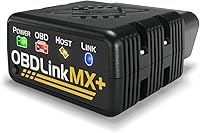
The main difference is guided repair information versus app choice. BlueDriver centers its experience on its own app, while MX+ supports the OBDLink app and compatible third-party tools.
BlueDriver provides unlimited technician-verified repair reports matched to your VIN, including code definitions, possible causes and confirmed fixes. That helps a newer DIYer understand what to investigate rather than starting with a bare code number.
OBDLink recommends MX+ for FORScan, Torque, BimmerCode, Dashcommand, AlfaOBD and Carista. That range matters when you need a particular app, but it doesn't mean every app supports every vehicle or function.
Think about your next likely job: understanding a family car's warning light or using a known app for a defined task. The first points toward BlueDriver; the second gives MX+ a clearer purpose.
For more detail on each option, see our BlueDriver review and OBDLink MX+ review.
Which scanner supports your phone or computer?
MX+ supports iOS, Android and Windows; BlueDriver supports iOS and Android. Windows users have a clear choice between these 2, while phone users should decide based on the app experience.
A phone or tablet works well for quick checks beside the car. A computer may suit you better when reviewing saved information or working through a longer diagnostic process.
Both adapters connect wirelessly through Bluetooth and draw power from the vehicle. You'll still need a charged device and the correct app before you can read anything.
For MX+, check the operating system supported by your chosen app as well as the adapter. An app name in a compatibility list doesn't mean that app runs on all 3 supported device platforms.
BlueDriver vs OBDLink MX+: which setup fits you?
Choose BlueDriver for one app to learn, or MX+ when you want to select an app around a specific job. Neither choice removes the need to follow connection instructions carefully.
BlueDriver's plug-in, pair-and-scan approach gives occasional users a defined starting point. With MX+, decide which app you'll use before connecting, so you aren't troubleshooting an unfamiliar app and a vehicle connection at the same time.
Avoid choosing extra apps just because they're available. Start with the one that covers your immediate need, then add another only when it solves a different problem.
Which one gives you more useful repair information?
BlueDriver is the stronger fit for repair explanations, while MX+ suits drivers who want to examine and save data. Choose according to how you plan to use the information.
A repair report can suggest where to begin, but a confirmed fix for a similar fault isn't proof that your car needs the same part. Match the report to your symptoms and check the cause before ordering anything.
The OBDLink app can graph, log and export real-time engine data. Those tools help when you want to compare readings over time or share a record with someone helping you diagnose a fault.
BlueDriver also provides live data, freeze frames, smog readiness and Mode 6 results. Freeze-frame information captures conditions around a recorded fault, while readiness status helps you see whether emissions monitors have completed their checks.
Don't mistake more displayed values for a clearer diagnosis. A few relevant readings, saved with notes about engine temperature and symptoms, are often more useful than an unexplained screen full of numbers.
What vehicle systems can each scanner access?
Both go beyond basic engine-code reading on supported vehicles, but their coverage isn't interchangeable. Confirm the exact system and function you need before buying.
BlueDriver can read and clear enhanced codes for ABS, SRS, airbag, TPMS, transmission and other supported systems. Its standard coverage includes 1996 and newer North American gasoline vehicles, plus select light-duty trucks and diesels.
MX+ offers enhanced OEM support for Ford, GM, Mazda, Nissan/Infiniti, Toyota/Lexus/Scion, Honda, Hyundai and Kia. It also provides additional live parameters, including ABS, SRS and TPMS information where supported.
A make appearing on a coverage list is only the first check. Model year, engine, market and the task itself can affect what a scanner can do.
Write down the function in plain terms: “read the airbag fault” or “view a wheel-speed signal.” Reading codes, clearing codes, viewing data and commanding a component are different capabilities.
For broader context, see our guide to full-system OBD2 readers. Our OBD2 scanners with ABS and SRS guide also helps you compare options around those specific systems.
If you're still choosing the type of adapter, our best Bluetooth OBD2 scanners guide puts these models alongside other options.
Who should buy BlueDriver, and who should skip it?
Buy BlueDriver if you want help understanding codes and planning your next checks. It fits occasional DIYers who want a consistent app experience without choosing among several diagnostic tools.
A useful example is a family car with a new warning light and no obvious change in how it drives. You can save the code information, review likely causes and prepare better questions before arranging a repair.
BlueDriver is also a sensible fit for someone who expects to scan only a few times a year. Its no-subscription access, no add-ons and no account requirement keep that occasional-use routine straightforward.
Skip it if Windows is your required device or your plan depends on a particular third-party app. Those are reasons to choose around your workflow rather than around the appeal of repair reports.
Also skip it for any essential function you can't confirm for your car. Helpful explanations won't compensate for missing access to the system you need.
Who should buy OBDLink MX+, and who should skip it?
Buy MX+ if you have a specific compatible app or a clear data-recording goal. It makes the most sense when you know why you want its broader app support.
For example, you may want to record engine readings under repeatable conditions and review them later. Logging and exporting give that work a purpose beyond watching gauges change on a screen.
MX+ also fits a driver who wants to use the same adapter across supported phone and computer setups. Confirm each app's requirements before assuming your preferred setup will transfer between devices.
Skip it if app selection sounds like an extra chore and your main need is guided code interpretation. More choices are useful when they serve a task, but they can add decisions for someone who only wants a starting point.
Don't buy it solely because a compatible app is associated with advanced functions. Establish support for your exact vehicle and task before making that the reason for your choice.
Do either BlueDriver or OBDLink MX+ need a subscription?
BlueDriver includes its features without a subscription; MX+ includes lifetime firmware and software updates. Separate third-party app terms still need a check.
BlueDriver's included access makes its ongoing arrangement easy to understand. You don't need to choose a paid plan to obtain its repair reports or supported diagnostic functions.
For MX+, separate the adapter's included updates from the access terms of any other app you want to use. Confirm what the app includes, what requires separate access and whether your intended function is available.
For occasional use, clarity about future access can matter more than having a long app list. Our guide to OBD2 scanners without a subscription covers more options built around that priority.
How should you set up your first scan?
Start parked, identify the vehicle correctly and save information before clearing anything. A careful first scan gives you a useful record instead of just an empty fault screen.
- Confirm compatibility first. Have the make, model, year, engine and intended task ready, then check the relevant vehicle and app guidance.
- Prepare your device. Install the correct app, review its connection instructions and allow the permissions it needs for Bluetooth communication.
- Find the diagnostic port. Use the vehicle manual if needed, and insert the adapter squarely without forcing it.
- Follow the ignition instructions. Different checks may call for ignition on with the engine off or for the engine to run.
- Verify the vehicle details. Confirm the VIN or vehicle profile before treating a report or reading as relevant.
- Save the first results. Record codes, their status and available freeze-frame information, along with the warning lights and symptoms you noticed.
For a first session, reading and saving is enough. Leave clearing and deeper functions until you understand what the results mean.
If the app won't connect, work through one cause at a time: vehicle power state, adapter connection, Bluetooth permissions and app selection. Close other diagnostic apps while resolving the connection.
Our guide on how to use an OBD2 scanner explains the basic process in more detail.
What common mistakes make scan results less useful?
Clearing codes too soon and replacing parts from code names are the biggest mistakes to avoid. Preserve the evidence, then investigate the cause.
A trouble code identifies a detected condition, not necessarily a failed component. Wiring, connectors, leaks or other faults can produce symptoms that point toward a part which is still working.
Clearing codes can erase useful diagnostic information and reset emissions readiness monitors. Don't clear a warning just before an inspection and assume the vehicle is ready.
A scan also can't certify a used car's condition. Check readiness status and service records alongside the scan, and consider an independent inspection before committing to the vehicle.
Don't assume that reading an ABS or airbag fault means you can perform every related service procedure. Access to information and control of a system are separate requirements.
Keep notes that another person can understand: the exact code, whether the engine was cold or warm, and what happened before the warning appeared. Avoid driving while handling the app; review saved information when safely parked.
How should you care for and store the adapter?
Keep the connector dry, avoid strain on the port and follow vehicle guidance about leaving accessories connected. Small habits help prevent connection problems and physical damage.
Pull on the adapter body when removing it, rather than rocking it hard from side to side. Check that it doesn't interfere with your legroom or safe use of the pedals.
MX+ includes over-voltage and battery drain protection, plus an intelligent sleep mode. Those features support connected use, but you should still consider the vehicle's battery condition and how long it will sit unused.
For occasional scans, unplugging afterward creates a simple storage routine. Keep the adapter somewhere dry and protected from loose items that could damage its connector.
Keep the app and any available adapter firmware current, and complete updates while parked with a stable connection. Our guide to leaving an OBD2 scanner plugged in explains the practical considerations.
Is the OBDLink LX an alternative to MX+?
LX is an alternative for Android and Windows users with compatible non-hybrid vehicles. It doesn't support iOS, hybrids or electric vehicles.
It includes the OBDLink Android app and OBDwiz for Windows, and works with compatible third-party apps such as Torque and DashCommand. It covers 1996 and newer cars and light trucks sold in the US, subject to those exclusions.
Choose it only after confirming that it supports your actual job. Don't treat LX as a direct replacement for MX+ merely because both adapters come from OBDLink.
BlueDriver vs OBDLink MX+: which should you choose?
Choose BlueDriver for guided next steps; choose MX+ for a defined app or data workflow. Let a confirmed vehicle requirement settle the decision before convenience features do.
Pick BlueDriver if your main goal is to understand warning lights and prepare for a sensible repair discussion. Pick MX+ if you can name the compatible app or recording task that makes its flexibility useful.
If neither covers your essential function, keep looking. Our Bluetooth scanner guide is another starting point, while the best OBD2 scanners for DIY car owners covers a broader range of tools.
How to use the scores in this comparison
MX+ scores 9.3 for its device range and app flexibility, while BlueDriver scores 9.1 for repair guidance and included app access. For this BlueDriver vs OBDLink MX+ decision, the higher score matters less than confirmed support for your car and the job you need to complete.
Frequently asked questions
Is BlueDriver or OBDLink MX+ better?
BlueDriver is the better fit for drivers who want repair guidance alongside codes, while OBDLink MX+ suits people choosing a specific diagnostic app or using Windows. Start with your vehicle and intended task, then confirm coverage before choosing between a guided app experience and more app flexibility.
Does OBDLink MX+ work with iPhone?
Yes, OBDLink MX+ supports iPhone through iOS, as well as Android and Windows devices; that doesn't mean every compatible third-party app runs on every platform. Check the app's device requirements, vehicle coverage and available functions before buying the adapter for a particular job.
Does BlueDriver require a subscription?
No, BlueDriver includes its features without subscription fees, add-ons or an account requirement, and free app updates are included; that makes its ongoing access straightforward for occasional users. Vehicle compatibility still determines which diagnostic functions you can use, so confirm enhanced coverage before relying on a specific system.
Can BlueDriver and OBDLink MX+ read ABS codes?
BlueDriver can read and clear ABS codes on supported vehicles; OBDLink MX+ provides ABS-related live parameters and enhanced OEM support where compatible. These descriptions don't guarantee identical ABS functions; confirm code access, clearing and data availability separately for your exact vehicle and, for MX+, your chosen app.
Can I use OBDLink MX+ with FORScan?
Yes, OBDLink recommends MX+ for FORScan, along with several other third-party apps. Confirm that your FORScan setup supports your device, vehicle and intended function before buying; an adapter recommendation establishes a connection option, but it doesn't promise that every function works on every supported vehicle.