Is BlueDriver a Bidirectional Scan Tool?
Is BlueDriver bidirectional? Its supported features do not guarantee active component control. Choose it for code-based diagnosis; choose a scanner with confirmed vehicle-specific active tests if you need to command components.
On this page (9 sections)
- Is BlueDriver bidirectional?
- Who should buy BlueDriver, and who should skip it?
- What does bidirectional control let a scanner do?
- Which Bluetooth scanners support component commands?
- How do you check coverage before buying?
- How should you set up and use a Bluetooth scanner?
- Which mistakes lead to the wrong scanner or repair?
- FAQ
- Is BlueDriver bidirectional enough for your repair?
BlueDriver's supported features do not guarantee bidirectional control, so don't buy it for active component commands. If you're asking “is BlueDriver bidirectional?” because you need to run a cooling fan or operate another component, choose a tool with confirmed support for that task.
BlueDriver suits drivers who want to understand warning lights and inspect vehicle information. Start with what a bidirectional scan tool does if you're unsure which kind of diagnosis your repair needs.
Is BlueDriver bidirectional?
BlueDriver is a diagnostic choice for reading vehicle information, with no established active component control among its supported features. Its functions include code reading and clearing, live data, freeze frames, smog readiness, and Mode 6 results.
Bidirectional control adds a separate ability: the scanner asks a vehicle system to perform an action. A tool that reads a fan-related fault or displays coolant temperature does not automatically let you command the fan.
Clearing codes also doesn't prove bidirectional capability. It changes stored fault information, but it doesn't show whether a component responds when commanded.
Does live data mean BlueDriver is bidirectional?
Live data does not guarantee bidirectional support. Think of it as watching what the vehicle reports, while an active command asks the vehicle to do something.
Both can help with diagnosis, but they answer different questions. A sensor reading may reveal an unusual condition; a component command can help you investigate whether a supported part responds.
Who should buy BlueDriver, and who should skip it?
Buy BlueDriver for warning-light diagnosis without a recurring feature plan. Skip it if your main job requires component commands or a specific service procedure that hasn't been confirmed.
BlueDriver provides enhanced diagnostics for supported systems such as ABS, SRS, TPMS, and transmission. Its VIN-matched repair reports include code definitions, possible causes, and technician-verified fixes.
Those reports can help you plan the next check or explain a fault to a repair shop. They don't prove that the same repair is right for your vehicle, so use them alongside the symptoms and service information.
The adapter connects through Bluetooth to an iOS or Android phone or tablet. It supports North American gasoline vehicles from 1996 onward and select light-duty trucks and diesels, with enhanced coverage depending on the vehicle.
BlueDriver includes its features and app updates without subscriptions, add-ons, or an account requirement. That makes it a sensible fit for occasional scans across compatible family vehicles.
For more detail on its everyday diagnostic role, read our BlueDriver scanner review.
What does bidirectional control let a scanner do?
Bidirectional control lets a compatible scanner request actions from supported vehicle systems. Depending on coverage, that might mean operating a fan, cycling a window, or commanding another component during diagnosis.
A response gives you another clue, not a complete repair verdict. A fan that fails to move could have a motor, power, wiring, control, or operating-condition problem.
Active commands also differ from maintenance functions. An oil reset or another service menu entry does not prove that a scanner offers the component command you need.
Our guide to bidirectional scan tools explains the category, while the best bidirectional scan tools comparison helps you narrow down alternatives.
Which Bluetooth scanners support component commands?
TOPDON TopScan Lite offers explicit bidirectional control, while OBDLink MX+ provides specific GM controls through a separate Android app. Choose between them by the actual task, vehicle, and software involved.
TopScan Lite supports commands for components such as injectors, cooling fans, headlights, A/C clutches, windows, and wipers where vehicle coverage allows. It suits DIY owners who need to investigate a fault by requesting a response.
Its advanced features include bidirectional control, service functions, live data, code clearing, and AI features. These are included for the first year, with monthly, quarterly, or annual subscriptions available for continued access afterward.
Core functions, including full-system scanning and code reading, remain available without renewing advanced access. Skip TopScan Lite if you need long-term access to its advanced features but won't maintain the required plan.
Don't assume a supported vehicle brand means every command is available. Confirm the individual function before committing to a repair that depends on it.
When does OBDLink MX+ make more sense?
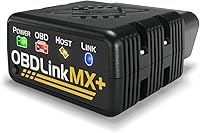
OBDLink MX+ suits buyers who already know which compatible app they need. It works with iOS, Android, and Windows, but app features and vehicle controls depend on the software and platform.
On supported GM models, obdCANex for Android can operate windows and door locks and remotely start the engine. Those specific controls don't guarantee broad active diagnostic coverage for other vehicles.
The included OBDLink app can graph, log, and export real-time engine data. The adapter also includes firmware updates, over-voltage protection, and battery-drain protection.
Choose it when its app support matches a clear plan for your vehicle. Skip it as a general bidirectional solution if you haven't confirmed which app supplies the required function.
How do you check coverage before buying?
Verify the exact vehicle, system, and function together. Broad OBD2 compatibility usually tells you less than a vehicle-specific feature check.
Use this checklist before ordering:
- Identify the vehicle: record the model year, make, model, engine, and market.
- Name the task: specify “command cooling fan” or another exact action instead of asking only about bidirectional support.
- Check the system: confirm access to the module involved, especially for enhanced diagnostics.
- Match the device: verify that the required app works on your phone or computer.
- Check ongoing access: include software plans and any required gateway accounts in your decision.
If a coverage chart is unclear, ask the brand about the exact function using your vehicle details. Save that answer so you can compare it with the menus available during setup.
For a wider framework covering code readers and more capable tools, see how to choose an OBD2 scanner.
How should you set up and use a Bluetooth scanner?
Start with a parked vehicle and save the initial scan before changing anything. Follow the scanner instructions for connecting the adapter, pairing the app, and selecting the required ignition state.
Locate the diagnostic port and insert the adapter gently without forcing it. Confirm that the app has identified the correct vehicle before choosing enhanced systems or service functions.
Record the warning lights, symptoms, codes, and available freeze-frame details. This gives you a useful starting point if a fault returns or you later need help from a repair shop.
For active commands, read the vehicle procedure before selecting a function. Keep people and tools clear of moving parts, and follow the stated conditions for engine state, gear selection, and battery support.
Keep the adapter dry and avoid pulling it sideways from the port. If it protrudes into foot space, remove it before driving; never watch or operate a scanner app while driving.
Our OBD2 scanner use guide explains a basic scan workflow in more detail.
Which mistakes lead to the wrong scanner or repair?
The biggest mistake is buying by a broad feature label instead of a specific job. “Enhanced diagnostics,” “full-system scanning,” and “bidirectional control” describe different capabilities.
Another mistake is replacing the part named in a code without checking the cause. A fault code can point to a circuit or operating condition, so inspect relevant wiring, connections, and service guidance before ordering parts.
Don't clear codes just to see whether a warning disappears. Save the evidence first, and remember that clearing faults can reset emissions readiness monitors.
Avoid running unfamiliar service functions out of curiosity. Read what the procedure changes and what conditions it requires before you proceed.
FAQ
Choose by the function you need, then verify coverage. These answers address the most common points of confusion.
Can BlueDriver activate a cooling fan?
BlueDriver's supported features do not guarantee cooling-fan activation, so don't buy it for that job. TOPDON TopScan Lite includes cooling-fan commands on supported vehicles, but confirm exact coverage and the terms for continued advanced access.
Does BlueDriver clear codes?
Yes, BlueDriver can read and clear supported trouble codes. Save the codes and freeze-frame information first, because clearing a warning doesn't repair its cause and can reset emissions readiness monitors.
What is the difference between live data and bidirectional control?
Live data displays information; bidirectional control requests an action. Watching coolant temperature is monitoring, while asking a supported cooling fan to run is an active command.
Which BlueDriver alternative supports bidirectional control?
TOPDON TopScan Lite explicitly supports bidirectional control on compatible vehicles. Its advanced functions are included for the first year, with a subscription required for continued access afterward.
Is BlueDriver bidirectional enough for your repair?
Choose BlueDriver when your next step is reading faults and understanding vehicle data. Choose TopScan Lite when the repair calls for a confirmed component command, and choose OBDLink MX+ when a specific supported app fits your task.
Before buying, write down the one function you need and confirm it for your vehicle. Compare Bluetooth OBD2 scanners for phone-based diagnosis, or compatible active-test scanners when component control is essential.
Frequently asked questions
Can BlueDriver activate a cooling fan?
BlueDriver's supported features do not guarantee cooling-fan activation, so don't buy it for that job. TOPDON TopScan Lite includes cooling-fan commands on supported vehicles, but you still need to confirm your exact vehicle's coverage and understand the subscription needed for continued advanced access after the first year.
Does BlueDriver clear codes?
Yes, BlueDriver reads and clears supported trouble codes, including enhanced codes where vehicle coverage allows. Save the codes and freeze-frame information before clearing anything, because erasing a warning does not repair its cause and can reset emissions readiness monitors that must complete again before an inspection.
What is the difference between live data and bidirectional control?
Live data displays information reported by vehicle systems, while bidirectional control sends a command requesting an action. Watching coolant temperature is data monitoring; requesting a cooling fan to run is an active command, and support for the first function does not prove support for the second.
Which BlueDriver alternative supports bidirectional control?
TOPDON TopScan Lite explicitly supports bidirectional control on compatible vehicles, making it the clearest alternative here for component commands. Its advanced functions are included for the first year, with a monthly, quarterly, or annual subscription required afterward; confirm the exact active function you need before buying.