OBDLink MX+ Review: Worth It? (November 2026)
The OBDLink MX+ suits DIY owners who want app choice and Windows support. Choose it for a compatible diagnostic app and confirmed vehicle functions; choose BlueDriver if you prefer repair guidance in one phone app.
On this page (10 sections)
- What does the OBDLink MX+ offer?
- Can the MX+ access ABS, SRS and TPMS?
- Who should buy the MX+, and who should skip it?
- What should you check before ordering?
- How does the MX+ compare with the alternatives?
- How do you set up the OBDLink MX+?
- Which mistakes make scan results less useful?
- Can you leave the MX+ connected, and how should you care for it?
- Does the MX+ require a subscription?
- Should you choose the OBDLink MX+?
The OBDLink MX+ is a strong choice for DIY owners who want diagnostic app flexibility, especially if a Windows PC is part of their setup. Buy it for a confirmed vehicle and software combination, rather than assuming one adapter provides every repair function.
Its appeal is the freedom to choose software for different tasks. Drivers who mainly want help understanding a warning light may prefer a scanner with repair reports built into its own app.
What does the OBDLink MX+ offer?
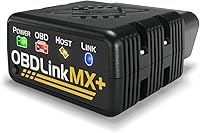
The MX+ connects your vehicle to an app that can display diagnostic information and live data. It supports all OBD-II protocols, plus advanced networks used in many late-model GM, Ford, Mazda, Nissan and Toyota vehicles.
OBDLink MX+ Bluetooth Scanner: Best for multi-app DIY owners

- iOS, Android and Windows support
- Enhanced OEM diagnostics on supported vehicles
- Overvoltage and battery drain protection
- Included OBDLink app and firmware updates
Choose the MX+ when a compatible diagnostic app or Windows computer is central to your repair plans. The included OBDLink app also graphs, logs and exports real-time engine data.
Pros
- Works with phones and Windows PCs
- Recommended for several third-party apps
- Graphs and exports engine data through the included app
- Includes lifetime firmware and software updates
Cons
- App and vehicle support determine available functions
- Third-party software may add separate costs
Enhanced OEM support covers Ford, GM, Mazda, Nissan/Infiniti, Toyota/Lexus/Scion, Honda, Hyundai and Kia. Within those groups, the exact model, year, module and software determine what you can access.
The included OBDLink app can graph, log and export real-time engine data. That makes it useful when you need a record of changing values rather than a single code readout.
For example, saving a log can help you compare an intermittent symptom with engine conditions at the time. Keep notes about whether the engine was cold, warm, idling or under load so the numbers have context.
Which devices and apps work with the OBDLink MX+?
The MX+ works with iPhone, Android and Windows, but each app has its own platform and vehicle requirements. Choose the software for your intended job before deciding which device to use.
OBDLink recommends the adapter for FORScan, Torque, BimmerCode, DashCommand, AlfaOBD and Carista, among others. An adapter recommendation does not mean that every app includes the same features or supports every car.
Our guide to the best Bluetooth OBD2 scanners helps compare phone-based options. The BlueDriver review is useful if repair explanations matter more than choosing among apps.
Can the MX+ access ABS, SRS and TPMS?
The MX+ supports ABS, SRS and TPMS live parameters on compatible vehicles. Confirm code reading, code clearing and other functions separately for the module you need.
Those are different capabilities: seeing a sensor value does not mean you can clear a fault, run a service procedure or command a component. Ask about the exact action, such as reading an ABS fault on your model and year.
For a check-engine light, the included OBDLink app supports clearing the light. Save the codes and available diagnostic information first, because clearing them removes clues without repairing the cause.
Compare full-system scan tools if you need access across several modules. For a brake or airbag warning specifically, start with the scanners with ABS and SRS coverage and verify the required function.
Is the MX+ suitable for bidirectional work?
The MX+ can support specific vehicle commands through compatible software, but it should not be your default choice for broad actuator control. Buy it for this purpose only after confirming the command and vehicle combination.
For supported GM models, the obdCANex Android app can control windows and door locks, and it supports remote engine starting. These examples do not guarantee equivalent functions on other makes or through other apps.
Our guide to what a bidirectional scan tool does explains how commands differ from reading data. A supported connection to a module is only the first requirement for sending it commands.
Who should buy the MX+, and who should skip it?
Buy the MX+ if your chosen app recommends it, you need Windows support, or you want engine data logs for further diagnosis. It fits owners willing to check software coverage and learn what the available values mean.
It also suits a household where different vehicles call for different compatible apps. Check every vehicle separately, since success on one car does not guarantee support on another.
Skip it if your main goal is a guided explanation of fault codes with likely repair paths. BlueDriver's VIN-matched reports are a more direct fit for that need.
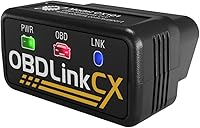
A BMW or Mini owner focused on BimmerCode should compare the OBDLink CX Bimmercode Adapter. For a named service reset or actuator command, prioritize confirmed coverage of that procedure over app choice.
Do not buy the MX+ merely because a dashboard warning includes the letters ABS, SRS or TPMS. The warning tells you which system needs attention, while compatibility determines whether your setup can retrieve the information you need.
What should you check before ordering?
Confirm your vehicle, device, app and required function as one complete setup. Checking only the adapter's supported makes leaves too much unresolved.
Write down these details before comparing options:
- Your vehicle's year, make, model and engine.
- The module or warning you need to investigate.
- The exact task: read codes, view data, clear a fault, code a setting or perform a service procedure.
- Your phone or computer and its operating system version.
- The app you plan to use and any separate software costs.
Use OBDLink's compatibility guidance and the chosen app's vehicle information together. If either leaves the required function unclear, resolve that before buying.
For a used-car inspection, remember that a clean scan is only one part of the check. It cannot guarantee the condition of tires, suspension, bodywork or every mechanical part.
Our best OBD2 scanners for DIY car owners guide helps match diagnostic depth to the work you plan to do.
How does the MX+ compare with the alternatives?
Choose the MX+ for software flexibility, BlueDriver for repair guidance, CX for a focused BimmerCode setup, or Ediag Elite for confirmed service functions. Each solves a different buying problem.
BlueDriver for understanding a warning light
BlueDriver suits drivers who want code reading and repair explanations in one phone app. It includes VIN-matched repair reports with definitions, causes and confirmed fixes, plus live data, freeze frames, smog readiness and Mode 6 results.
Its coverage includes 1996+ North American gasoline vehicles and select light diesels, with enhanced diagnostics dependent on the vehicle. Hybrid support covers standard OBD2 emissions and engine-related codes; do not assume access to every hybrid system.
Skip BlueDriver if Windows software or a particular third-party app is essential to your plan. Read our BlueDriver vs OBDLink MX+ comparison to weigh the two approaches.
OBDLink CX for a planned BimmerCode project
The CX suits compatible BMW and Mini owners who have already chosen BimmerCode. It is designed for that app, recommended by the BimmerCode team and pairs within the app on iOS and Android.
BimmerCode is sold separately, and vehicle-specific diagnostics require an in-app purchase. The included OBDLink app also provides live parameters, diagnostics and check-engine light clearing.
Skip the CX if your reason for shopping is Windows support or flexibility across the MX+'s recommended apps. For coding, confirm the exact setting you want to change before choosing any adapter.
Ediag Elite for service resets and component commands
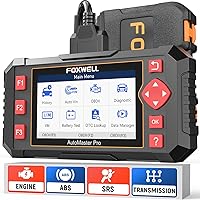
The Ediag Elite suits buyers who need a confirmed service procedure rather than code reading alone. It offers full-system diagnostics, bidirectional commands and 15+ reset services, including oil, battery management, steering angle and brake-related functions.
It also supports CAN FD and FCA AutoAuth access, with your own FCA account required for protected functions. KINGBOLEN includes lifetime updates without subscription fees.
Confirm current phone requirements before buying: KINGBOLEN describes iOS and Android compatibility, while its operating system specification names Android 5.0. Skip this tool if you only need occasional engine code reading and have no use for service functions.
How do you set up the OBDLink MX+?
Set up the MX+ while parked, following the adapter's quick-start guide and the chosen app's connection instructions. Start with reading information before attempting clearing, coding or commands.
- Install the intended app and check its setup requirements.
- Locate the vehicle's diagnostic port using the vehicle manual if needed.
- Insert the adapter straight into the port without forcing it.
- Follow the instructions for ignition position and Bluetooth connection.
- Confirm that the app identifies the correct vehicle.
- Save the first scan and any available freeze-frame information.
- Label saved records with the date, mileage and symptoms.
Some procedures call for the engine off, while live engine data may require it running. Follow the procedure's instructions, and run an engine only where exhaust can escape safely.
If connection fails, check ignition state, device compatibility and the app's selected adapter settings first. Close other diagnostic apps that might be trying to use the same connection.
Apply available firmware updates according to OBDLink's instructions before a planned diagnostic session. Avoid interrupting an update, and leave time to confirm the connection afterward.
Which mistakes make scan results less useful?
The biggest mistake is treating a trouble code as a parts order. A code points to a detected condition or circuit, and further checks establish its cause.
A sensor-related code can involve wiring, connectors or conditions elsewhere in the system. Use the code definition, symptoms and repair information together before replacing anything.
Clearing codes too early is another common mistake. It can remove useful fault information and reset emissions readiness monitors, so it is a poor shortcut before an inspection.
Do not assume a reset repairs a fault. An oil reminder reset belongs after the relevant maintenance, and other service procedures may require mechanical work or a specific sequence first.
For live data, select a few values related to the symptom instead of filling the screen with every available parameter. Record the conditions and compare the results with appropriate vehicle service information.
Keep the phone secured during a drive and review logs afterward. Do not operate diagnostic menus while driving.
Can you leave the MX+ connected, and how should you care for it?
The MX+ includes intelligent sleep mode, battery drain protection and overvoltage protection. Check the vehicle's parking routine and the adapter's physical position before deciding to leave it connected.
Its dimensions are 2.01 x 0.91 x 1.81 inches, and it weighs 28 g. Even a small adapter needs clearance from your knees, pedals and anything that could strike the diagnostic port.
A sleep feature does not replace checking the condition of a vehicle battery. For long storage or an existing battery issue, follow the vehicle and adapter guidance; our guide to leaving an OBD2 scanner plugged in covers the practical considerations.
Remove the adapter by gripping its body and pulling straight, rather than twisting against the port. Keep it dry, inspect the connector for damage and use the included zipper case when storing it.
Does the MX+ require a subscription?
The MX+ includes the OBDLink app and free lifetime firmware and software updates. Third-party apps have their own terms, so budget for the software needed for your intended task.
Check which app features are included and which require payment before buying the adapter. Free firmware updates do not mean every compatible app or vehicle function is free.
BlueDriver includes its features without subscriptions, add-ons or accounts. CX buyers need a separate BimmerCode purchase, while Ediag Elite buyers should account for any required FCA access arrangements alongside its included updates.
Should you choose the OBDLink MX+?
Choose the OBDLink MX+ when a confirmed app and vehicle combination meets your needs, especially if Windows support or data logging is central to the job. Decide on the task first, then confirm the full setup.
Pick BlueDriver for repair reports in one phone app, CX for a compatible BimmerCode project, or Ediag Elite for a verified reset or component command. None of those choices removes the need to check exact vehicle coverage.
Before your first scan, read how to use an OBD2 scanner. Save the evidence before clearing anything, and use it to plan the next check.
Frequently asked questions
What does the OBDLink MX+ do?
The OBDLink MX+ links your vehicle to a compatible phone or Windows PC for diagnostics; its included app can clear the check-engine light and graph, log and export real-time engine data. Enhanced system access depends on the vehicle and app, so confirm the particular function you need.
Does the OBDLink MX+ work with iPhone?
Yes, the OBDLink MX+ supports iPhone, along with Android devices and Windows PCs; that device support does not make every third-party app available on every platform. Check the app's operating system requirements and exact vehicle coverage before buying the adapter for a particular diagnostic or coding job.
Can the OBDLink MX+ read ABS and SRS codes?
Confirm ABS and SRS code-reading support for your exact vehicle and chosen app before buying; the MX+ offers live parameters from these systems on compatible vehicles, but live data access does not guarantee every code-reading or clearing function. Ask about the module and task you need, rather than general make coverage.
Is the OBDLink MX+ bidirectional?
The MX+ can support specific vehicle commands through compatible third-party software, but it is not a promise of broad actuator control. For supported GM models, the obdCANex Android app can control windows and door locks; confirm your exact vehicle and desired command before choosing it for bidirectional work.